
How to use our bulk uploader tool
If you need to book a large number of consignments in one go, you can use our bulk upload tool. This allows you to upload a pre-prepared spreadsheet with your full list of consignments. You’ll then be able to review quotes and select services for all consignments at once.
Please refer to our template spreadsheet to see the information we require. You can use this template or upload your own .csv or .xls files.
Filling in your data
Each row in the spreadsheet refers to an individual item for which you will need to provide product details, including description, commodity code, value, country of origin, and optional fields such as manufacturer details and Product Library reference.
However, one or more items may be contained in a single parcel, and one or more parcels may be included in the same consignment (shipment), by structuring the data as follows.
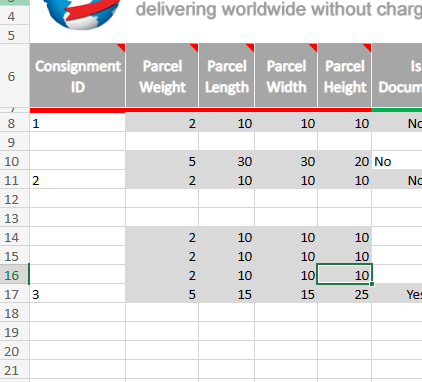
Each separate consignment should have its own Consignment ID (in Column A). However, you only need to provide the Consignment ID for the first item in each shipment – any subsequent rows are assumed to be part of the same shipment if the ID is left blank (see screenshot above).
For the first item in each parcel, include the parcel dimensions (Columns B-E). Any subsequent items are assumed to be part of the same parcel if their parcel dimensions are left blank.
So for example, in the screenshot, there are 3 separate shipments shown.
- Shipment 1 contains two parcels (two items in the first box, one item in the second).
- Shipment 2 contains four parcels (three items in the first box, one item in all of the others).
- Shipment 3 contains one parcel with only one item.
Uploading your data
You will need to provide contact details and a single collection address for all consignments on your list. If a different collection address is required for any of your shipments, you will need to upload these separately. Click Continue when you’re done.

The next step is to upload your spreadsheet. Click Choose file and then Upload.

As a way to help you verify your data, our bulk uploader tool allows you to remap your spreadsheet columns so they match our required information fields.
(Please note: if your spreadsheet has extraneous columns, you will get an error message—so please refer to our template to check what data your spreadsheet should contain.)
Simply reorder the headings listed under Your Columns (on the right-hand side) by clicking on the headings and dragging them to the correct position. On the far right is a preview of the first row of your consignment data, to give you an example of the contents of each field.

If you plan to use the same spreadsheet format in the future, enter a name to save your mapping. Then click Continue.

You will then be able to select this mapping next time you upload a file.

The uploader tool will then check for errors in the data—for example, if any required data is missing, or if your data exceeds the character limit for a particular field. These errors will be highlighted in red.
Hover over the relevant cell to see the error message. Click on any cell to edit.


Once you have amended all the necessary data, click Confirm Changes to proceed.

Choosing your services
The uploader tool provides quotes for all of your consignments in one go. If there are any service providers you wish to exclude from your quote, you can deselect them. Then click Search.

We will automatically show the cheapest available service for each consignment. Click View Prices to view alternative options.

Checking out
Once you have selected your chosen services for all consignments, click Add To Basket.
All consignments will then show individually in your basket.


From your basket, select which items you would like to book now. You can then proceed to choose your collection/drop-off and insurance options, before heading to checkout.
For collections, your consignments will be grouped into as few different collections as possible. For insurance, you will need to enter the insurance value for each consignment individually.




Be the first to know about the latest services